Free WordPress theme
Simple Writer WordPress Theme
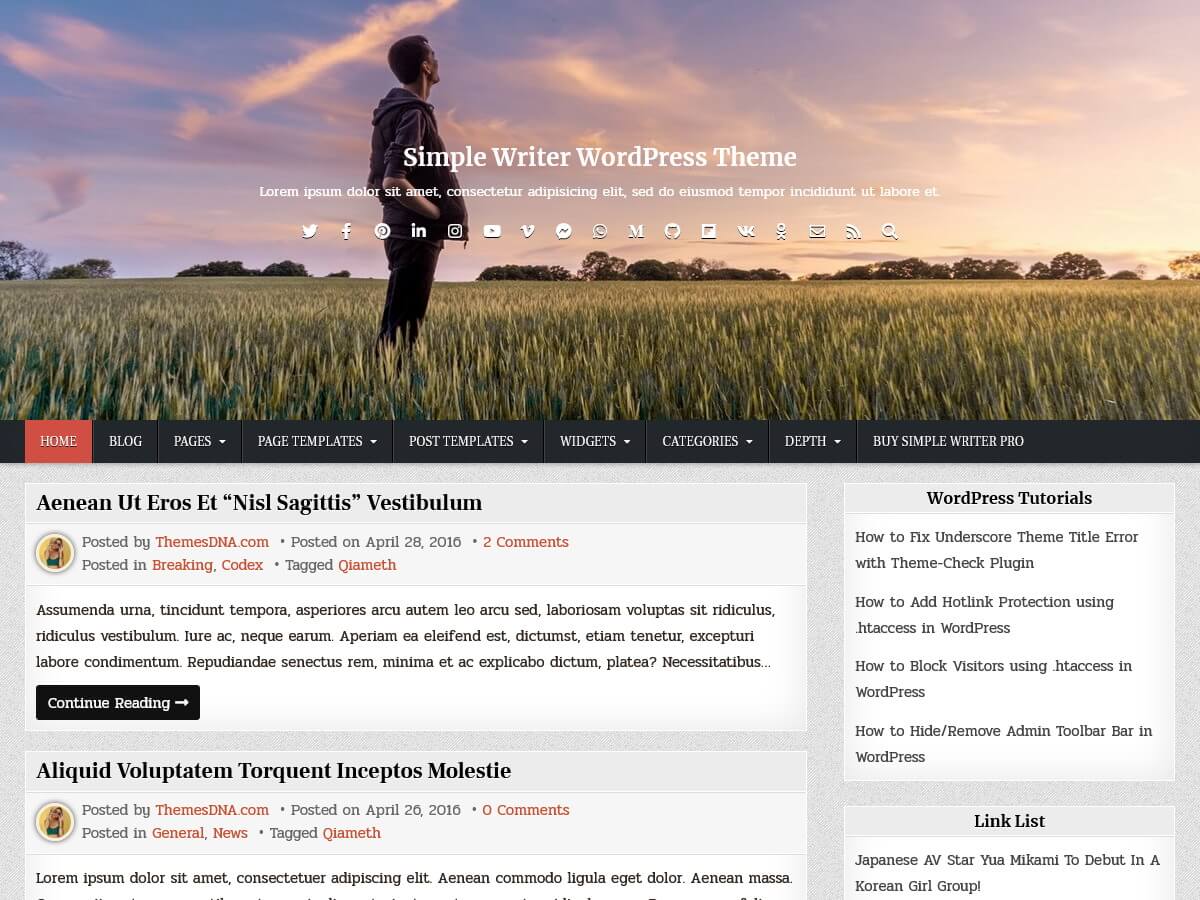
Simple Writer Theme Features
Responsive Design
Custom Page Templates
Logo Options
Menu Options
60+ Social Buttons
Search Engine Optimized
Custom CSS
Copyright Text
RTL Language Support
Translation Ready
Latest WP Version Ready
Cross Browser Compatible
HTML5 & CSS3
Clean & Secure Codes
Regular Updates
100% GPL License
Simple Writer vs. Simple Writer PRO
| Features | Simple Writer | Simple Writer PRO |
|---|---|---|
| Color Options | ✖ | ✔ |
| Font Options | ✖ | ✔ |
| 8 Custom Page Templates | ✖ | ✔ |
| 4 Custom Post Templates | ✖ | ✔ |
| Ajax Powered Featured Posts Widgets | ✖ | ✔ |
| Ajax Powered Tabbed Widget | ✖ | ✔ |
| Layout Options for Posts/Pages | ✖ | ✔ |
| Layout Options for Non-singular Pages | ✖ | ✔ |
| Width Change Options for Full Site/Main Content/Sidebar | ✖ | ✔ |
| Ability to Control Website Width/Layout Style/Header Style/Footer Style of each Post | ✖ | ✔ |
| Ability to Control Website Width/Layout Style/Header Style/Footer Style of each Page | ✖ | ✔ |
| 10+ Thumbnail Sizes for Posts Summaries | ✖ | ✔ |
| About and Social Widget - 60+ Social Buttons | ✖ | ✔ |
| Header Styles with Width Options | ✖ | ✔ |
| 6 Footer Layouts (1/2/3/4/5/6 Columns) | ✖ | ✔ |
| Posts Views Counter | ✖ | ✔ |
| Posts Likes System | ✖ | ✔ |
| Built-in Infinite Scroll and Load More Button | ✖ | ✔ |
| Settings Panel for each Post | ✖ | ✔ |
| Settings Panel for each Page | ✖ | ✔ |
| Post Share Buttons with Options - 25+ Social Networks | ✖ | ✔ |
| Related Posts (Categories/Tags/Author/PostIDs based) | ✖ | ✔ |
| Different Header Image for each Post/Page | ✖ | ✔ |
| Different Header Content Background Image for each Post/Page | ✖ | ✔ |
| Different Footer Content Background Image for each Post/Page | ✖ | ✔ |
| More Widget Areas | ✖ | ✔ |
| Secondary Navigation Menu with Options | ✖ | ✔ |
| Author Bio Box with 60+ Social Buttons | ✖ | ✔ |
| Post Navigation with Thumbnails | ✖ | ✔ |
| Enable/Disable Mobile View from Menus | ✖ | ✔ |
| Enable/Disable Google Fonts | ✖ | ✔ |
| Advertisements under Post Title/Post Content | ✖ | ✔ |
| Built-in Contact Form | ✖ | ✔ |
| WooCommerce Compatible | ✖ | ✔ |
| Yoast SEO Breadcrumbs Support | ✖ | ✔ |
| Random Posts Button | ✖ | ✔ |
| Priority Support | ✖ | ✔ |
| Theme Options | ✔ | ✔ (more options) |
| Top Primary Navigation Menu | ✔ | ✔ (more options) |
| Custom Logo Support | ✔ | ✔ |
| Header Image Support | ✔ | ✔ |
| Header Content Background Image Support | ✔ | ✔ |
| Background Image Support | ✔ | ✔ |
| RTL Language Support | ✔ | ✔ |
| Translation Ready | ✔ | ✔ |
| Latest WP Version Compatible | ✔ | ✔ |
| Sticky Menu | ✔ | ✔ |
| Sticky Sidebar | ✔ | ✔ |
| Footer Widgets | ✔ | ✔ |
| Clean Codes / No Encrypted Scripts | ✔ | ✔ |
| Lifetime Theme Updates | ✔ | ✔ |
| For Unlimited Domains | ✔ | ✔ |
Questions & Answers - Simple Writer
How to upgrade to the Simple Writer PRO version?
- Purchase Simple Writer PRO from here: https://themesdna.com/simple-writer-pro-wordpress-theme/
Note: You can purchase it using your credit card, debit card or PayPal. - Download the zip file of the purchased template clicking on the download link sent to your email address.
Note: Please check your spam folder if you cannot find it in your inbox. However, if you are still unable to locate this email or the download link is broken, please contact us via our contact form. We will send it as soon as possible. - Go to "WordPress Dashboard" -> "Appearance" -> "Themes" and click on "Add New" button.
- Click on "Upload Theme" button and choose the zip file you have downloaded.
- Click on "Install Now" button.
- Activate the theme.
- Now go to "Appearance" -> "Customize" to configure theme options.
How to install Simple Writer theme?
- Go to "WordPress Dashboard" -> "Appearance" -> "Themes" and click on "Add New" button.
- To find the theme, type "Simple Writer" into the search box.
- When you find the theme, click on the "Install" button.
- Click on "Activate" button to activate the theme.
Alternatively,
- Download the simple-writer.zip file.
- Go to "WordPress Dashboard" -> "Appearance" -> "Themes" and click on "Add New" button.
- Click on "Upload Theme" button and choose the zip file you have downloaded.
- Click on "Install Now" button.
- Activate the theme.
How to regenerate thumbnails?
After installing and activating this theme, the first thing you need to do is regenerate thumbnails from all your featured images to match this theme.
- Install and activate the "Regenerate Thumbnails" plugin.
- From the left hand navigation menu, click "Tools" -> "Regenerate Thumbnails".
- On the next screen, click on the specific button to generate thumbnails for all attachments.
- Now wait until regenerate process is complete.
How to add featured images for posts?
Adding a featured image to a post or page is very easy. If you do not know how to do that, please follow this guide: How to Add Featured Images in WordPress
How do I access the theme options?
Go to "Appearance" -> "Customize" -> "Theme Options" to access the theme options.
How to apply a custom page template?
This theme has custom page templates for posts and pages.
Follow this guide if you do not know how to apply a custom page for a post/page:
How do I setup menus?
Just after installing the theme it will display the pages as the default menus. You can add your own links, categories, pages for the menu.
This theme includes 2 menu location options: Primary Menu, Secondary Menu
- To create a menu, go to "Appearance" > "Menus" and click on the "create a new menu" link.
- Give a name to your menu and click on the "Create Menu" button.
- To add menu items, simply select options in the left side column by checking the box for pages, posts, categories, tags etc that you want to include and then click on the "Add to Menu" button.
- To create menu drop-downs, simply nest your drop-down menu links below the menu item under which you want them to appear.
- When you are done adding links, select a menu location by checking one of the options listed under "Display location" and save your menu.
How to upload a site icon?
Site Icons are what you see in browser tabs, bookmark bars, and within the WordPress mobile apps.
Note: Site Icons should be square and at least 512 × 512 pixels.
- Go to "Appearance" -> "Customize" -> "Theme Options" -> "Site Identity".
- Click on the "Select site icon" button.
- Click on the "Upload Files" tab of the upload screen.
- Now upload your site icon clicking on the "Select Files" button from the upload screen.
- Click on the "Publish" button at the top of the Customizer if you are satisfied with your site icon.
How to upload a logo?
Adding a custom logo is very easy. Please use the following steps.
- Go to "Appearance" -> "Customize" -> "Theme Options" -> "Site Identity".
- Click on the "Select logo" button.
- Click on the "Upload Files" tab of the upload screen.
- Upload your logo clicking on the "Select Files" button from the upload screen.
- Click on the "Publish" button at the top of the Customizer if you are satisfied with your logo.
How to upload a header image?
You can upload an image to your site header easily going to "Appearance" -> "Customize" -> Theme Options -> "Header Image".
How to add or change site background image?
You can add/change/remove site background image going to "Appearance" -> "Customize" -> Theme Options -> "Background Image".
How do I change the thumbnail size of post summaries?
- Go to "Appearance" -> "Customize" -> "Theme Options" -> "Post Summaries Options".
- Choose a thumbnail size using the "Posts Summaries Thumbnail Size" option.
How to add my own copyright message?
- Go to "Appearance" -> "Customize" -> "Theme Options" -> "Footer Options".
- Add your own copyright message to the "Footer copyright notice" text input.
How to change the number of posts per page?
This is not a theme specific setting.
Follow this guide to change the number of posts per page: How to Change the Number of Posts Per Page in WordPress
How to translate this theme into my language?
You can easily translate this theme using the "Poedit" software or the "Loco Translate" plugin.
More info:
How to translate a WordPress theme with Poedit software
How to translate a WordPress theme with Loco Translate plugin
What is the difference between "WordPress.org" and "WordPress.com"?
WordPress.org is the self-hosted version, which you can use to create and maintain a website on your own, whereas WordPress.com is a hosted blogging service that assists you in creating a website using the WordPress software.
Can I use this theme with WordPress.org websites?
- Yes. All our themes are working with any self-hosted WordPress installation.
Can I use this theme with WordPress.com websites?
- Yes. But if you need to upload a theme to a WordPress.com website, you will need to have their "Business" or "eCommerce" plan. If your site has one of their legacy plans, it is available on the "Pro" plan.
Can I use this theme on multiple websites?
Can I use your themes for a commercial project?
What is the support schedule?
You can email us directly & we will get back to you ASAP. Our general support hours are Monday to Friday, 06:30 to 20:00 (GMT+5). During this time, support queries will be answered in 1-12 hours (usually much quicker). On weekends it may take a bit longer to receive a response.
How to import Simple Writer demo content?
Follow the steps given below to import Simple Writer theme demo content, widgets and Customizer settings.
- First download and save this "simplewriterwordpresstheme.WordPress.2022-01-27.xml" file into your hard drive.
- Go to "Tools" -> "Import".
- In the "WordPress" section, if you have not already installed the importer, click "Install Now".
- When the installation is finished, click "Run Importer".
- Click on "Choose File" and select previously saved "simplewriterwordpresstheme.WordPress.2022-01-27.xml" file from your hard drive.
- Click on "Upload file and import" button.
- Now you will be asked to map the authors in the export file to users on your website. For each author, you may choose to map to an existing user on your website or to create a new user.
- Check the option "Download and import file attachments".
- Click on "Submit" button.
- To display different widgets in different pages, first install and activate the "Widget Display Conditions" plugin.
- Now install and activate the "Widget Importer & Exporter" plugin.
- Go to "Tools" -> "Widget Importer & Exporter".
- Click on "copy and paste" link. Then a textarea will be displayed.
- Copy and paste the content in the "demo.themesdna.com-simple-writer-widgets.wie" file into that textarea.
- Click on "Import Widgets" button.
- First download and save this "simple-writer-export.dat" file into your hard drive.
- Now install and activate the "Customizer Export/Import" plugin.
- Go to "Appearance" -> "Customize" -> "Export/Import".
- Click on "Choose File" from the "Import" section and select previously saved "simple-writer-export.dat" file from your hard drive.
- Check the option "Download and import image files?" and click on "Import" button.